Add or Remove a Workflow
There will be times when a user needs to add a workflow or a bundle (a group of workflows, such as Intra-op, Anesthesia, and PACU) to a chart, e.g. incorrect procedure scheduled, or Return to OR. This topic covers adding or removing an individual workflow. For information on adding a bundle or returning to the OR, see Add a Bundle
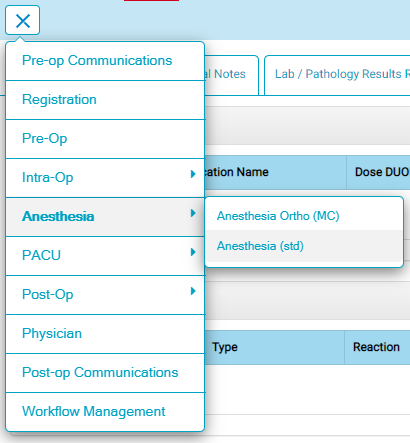
If more than one workflow exists for an area in a chart, there will be an arrow to the right of the area name. Hover over or tap on the area to view the workflows. Tap the desired workflow to enter it.
Workflows may also be removed from a chart if needed. After a workflow is removed from a chart, it can be restored (added back into the chart) if desired.
Jump to:
Add a Workflow
When a workflow is added, the workflow (its BLOCs and organization) are copied from an existing chart template. As such, when adding a workflow the user selects the chart template on which the workflow is based.
To Add a Workflow:
- While on the Chart Home page, tap Menu icon on the left side of header and tap “Workflow Management.” Note: The Workflow Management option is only visible on the Chart Home page.
- A flyout will appear listing all chart Areas.
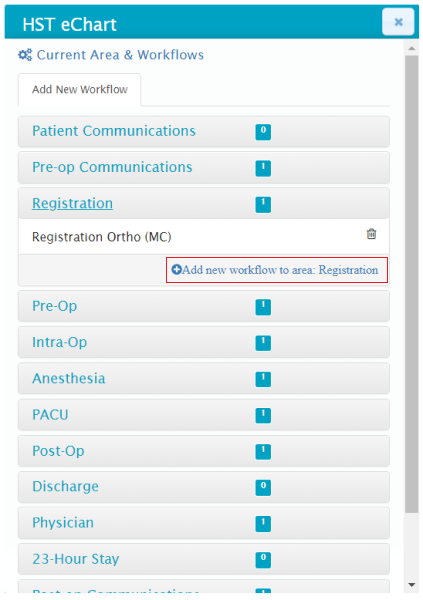
- Select the area to which the workflow is to be added by tapping on the area name.
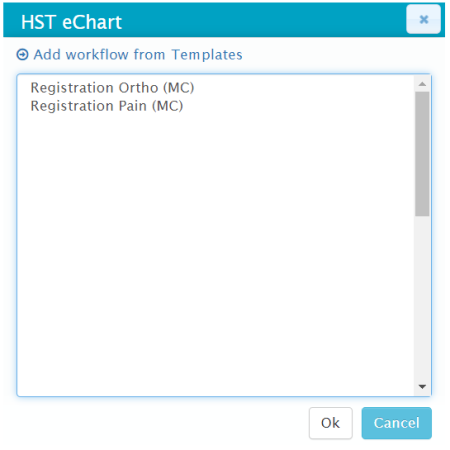
- Tap the + button to add a workflow to that area. A list of all Chart Templates that contain the workflow will appear. The workflows are listed by their name, not the Chart Template name.
- Select the desired Template and tap Ok.
- The workflow will now appear in the chart.
Remove a Workflow
- While on the Chart Home page, tap Menu icon on the left side of header and tap “Workflow Management.” Note: The Workflow Management option is only visible on the Chart Home page.
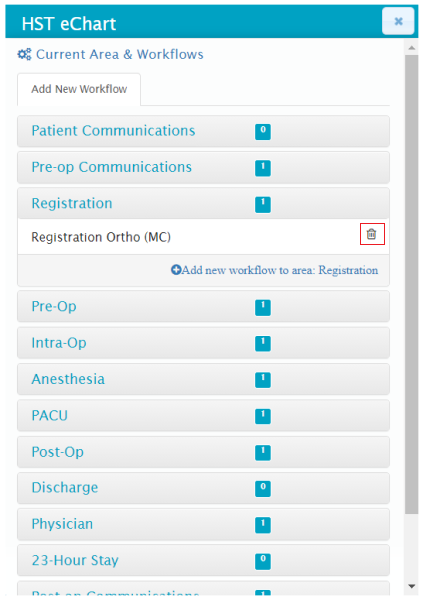
- A flyout will appear listing all chart Areas.
- Select the area from which the workflow is to be removed by tapping on the area name.
- Tap the delete icon to the right of the workflow to be removed.
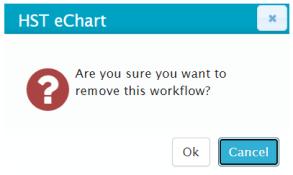
- A flyout will appear to confirm the removal of the workflow. Tap the Ok button to remove the workflow.
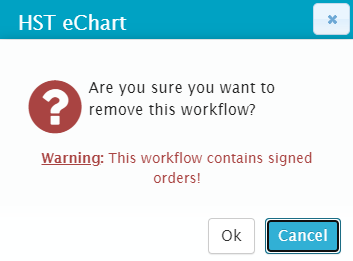
- As a safety feature, if the user tries to remove a workflow where there are existing signed orders, a warning will appear in the confirmation flyout.
Restore a Workflow
Restore a workflow is used to add a workflow back to a chart after it has been removed. Any documentation completed prior to deleting the workflow will be maintained. Any BLOCs present in the workflow that share/receive information from other BLOCs will reflect the current information.
- While on the Chart page, tap Menu icon on the left side of header and tap “Workflow Management.” Note: The Workflow Management option is only visible on the Chart page.
- A flyout will appear listing all chart Areas. There will be two tabs at the top of the flyout - "Add New Workflow" and "Restore Inactive Workflow."
- Tap the "Restore Inactive Workflow" tab.
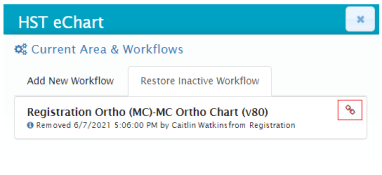
- Tap the red link icon next to the workflow to be restored.
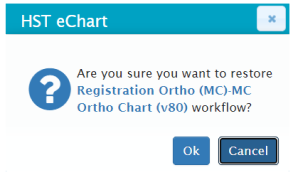
- A flyout will appear to confirm the restoration of the workflow. Tap the Ok button to restore the workflow.
- The workflow will now appear in the chart.