HST eChart Text Editor
HST eChart offers an enhanced text editor for formatting certain text fields within the software. The editor can be found, among other places, on the Operative Report Templates, Discharge Instructions, and Questions designer.
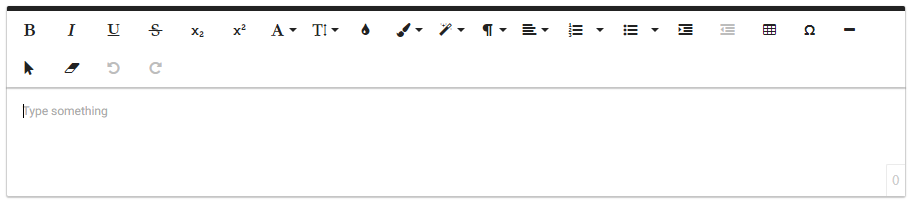
The text editor contains many formatting options found in popular word processing programs. These formatting options are applied using the buttons above the text field. This topic will guide users through certain features of the text editor.
Jump to:
Copy and Paste From an Existing Document
Fonts
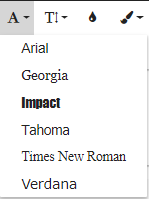
Font options are viewed by tapping the font icon. Different fonts may be used in one text field. Select a font by tapping on it. The font will appear in HST eChart BLOCs as it appears in the editor.
In the printed chart the default font is Times New Roman. For continuity of appearance, the default print font of user created text, such as in Questionnaires, Consents, etc. is Times New Roman - unless a different font is expressly selected in the text editor.
Font Size
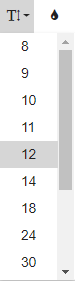
Font size may be changed from the default by using the Font Size button. The font size can be changed for all or only a portion of the text.
Text Color & Highlighting
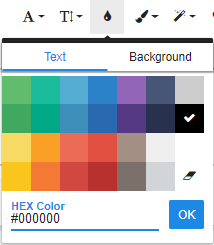
Text color may be changed using the drop-down color selector. A background color for the text, similar to highlighting, may also be selected using the drop-down by tapping the Background tab. The color options are the same for both text and background color. Text and background colors may be applied to some or all of the text.
Paragraph Format
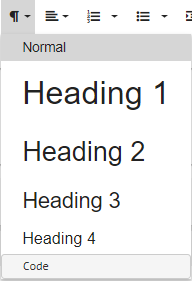
A paragraph format, such a "Normal" or "Header 1" may be selected from the Paragraph Format button drop-down. In HST eChart BLOCs, paragraph format will appear as it appears in the editor. In the printed version of the chart, the Header options do not appear exactly as they do in the BLOC, though all text content is the same. If it is important for formatting to transfer over to the printed chart, it is recommended users utilize a larger font size and bold to create a header effect, rather than using the header paragraph formats.
Align
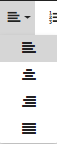
Text may be aligned right, center, or left by selecting the corresponding option from the align text drop-down. Note: The align justify option will display in HST eChart and in print as align left.
Ordered Lists
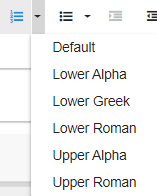
Ordered lists, lists that are ordered alphanumerically, may be created by selecting the desired order type from the ordered lists drop-down.
Unordered Lists
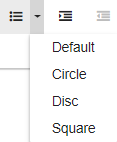
Unordered lists, also known as bullet lists, may be created by selecting the desired bullet type from the unordered lists drop-down.
Increase or Decrease Indent

Indentation for text can be increased or decreased using the increase indent and decrease indent buttons.
Copy and Paste From an Existing Document
Text from an existing word processor document can be copied and pasted into the text editor. When pasting into the editor from a Microsoft Word document, it will ask if the user wants to clean or keep the formatting. It is recommended to select Clean and use the in-application text editor to adjust formatting.
The HST eChart text editor does not have all the same advanced formatting capabilities found in many word processing programs. Because of this, not all formatting from the existing document may transfer into the editor.
Images are not supported in the HST eChart text editor.