Patient Monitor User Guide
Centers can have patient vital sign monitors and anesthesia machines interface with HST eChart. When a machine in interfaced, HST eChart can automatically pull in data from those machines into a BLOC.
The information that can potentially populate the graph via the Patient Monitor is:
- Time of Vital Signs
- Blood Pressure reading
- Heart Rate from Pulse Oximeter
- Heart Rate from EKG leads
- Respiration (primarily from EKG, may also be from CO2)
- Sp02%
- ETCO2
- Temp
The information that can potentially populate the graph from the Anesthesia machine is:
- FiO2
- FiN2O
- Vapors (Sevoflurane, Desflurane)
- Gases (Air l/m, O2 l/m, N2O l/m)
Jump to:
Patient Monitors
To import data from a patient monitor:
- Navigate to the Vital Signs BLOC 012, Vital Anesthesia – The Graph BLOC 014, or Vitals Anesthesia - The Graph2 BLOC 143.
- Select the Patient Monitor via the type-ahead search field.
This can be done prior to the patient’s arrival in the room.
Only the active monitors will appear in the search results. (HST Pathways staff can inactivate a monitor at the Center’s request.)
- Enter the Room In time or Anesthesia Start time for the workflow. This must be done before the Start button can be pushed!
- Tap the Start button in the BLOC.
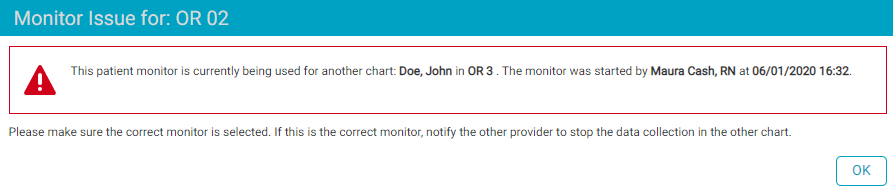
If another chart is using the selected monitor, a pop-up message will appear and the user will not be allowed to use the monitor until the other chart is no longer using it. The message includes the patient name, patient location, starting user, and starting time for the monitor in question.
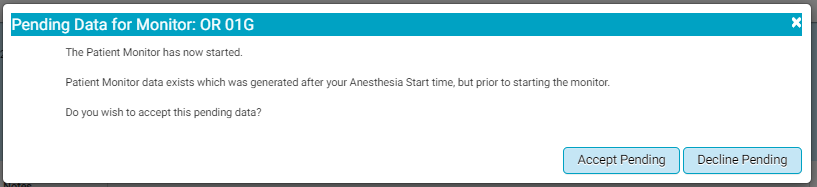
During the time that elapsed between entering the Room In time and tapping the Start button, there may have been vital signs taken by the monitor and held in a queue. If that is the case, a flyout will appear asking the user if they wish to accept the pending data. Tapping the Accepting Pending button will cause this data to populate the BLOC. The user can edit/delete these values should they choose to do so.
Anesthesia Machines
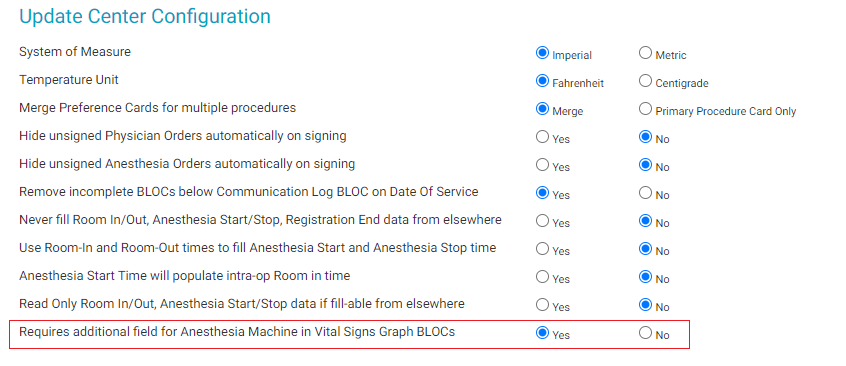
If the Center has a second monitor/anesthesia machine as a source for information for the Vitals Anesthesia - The Graph or Vitals Anesthesia - The Graph2, they must activate the additional field in HST eChart's Center Configuration.
If a second monitor is to be used, it cannot be selected and started while the first monitor is recording data. If a user wants to select and start an additional monitor, they must first stop recording. Then they must select both monitors from the search field and then tap the Start button again.
Troubleshooting
If vital signs are not populating HST eChart as expected, try the following:
- Double check the correct monitor is selected.
- Confirm the Room In/ Anesthesia Start Time been entered. Vital signs will not record until a Rom In or Start Time is entered.
- Tap the Stop Button, count to ten, tap the reset button, count to ten, then tap the start button again.
- Check the monitor running status in the eChart Admin menu.
- Check that the monitor running has the correct time configured.
Find the Monitor in question and look at the columns for Running Since, Pending Vitals From, and Last Workflow. This will give the user some information as to when the last vitals came from that monitor. If the Pending Vitals column is filled then data is coming over, but is not attaching to the chart. This indicates something in the chart is preventing the data from appearing, such as missing a Start Time or Room In Time.